To reset most Kwikset smart locks: take out the battery pack, press and hold “Program” while reinserting the pack, continue holding for about 30 seconds, then press “Program” once more. The SmartCode 910, 914 and 916, plus the Halo and Aura, all work with this.
That method doesn’t apply to every Kwikset lock. Before anything else, the Halo, Halo Touch and Aura require cleanup within the app and on your phone. The Premis, the Powerbolt 2, the 275 Touchscreen and the 264 each use their own button sequence. A network reset and a factory reset serve different purposes, so choose the correct option before you begin.
When your keypad lock happens to be a Schlage, go with this guide to a Schlage keypad lock that is not working instead.
Which reset do you need?
Three reset types are employed by Kwikset. Begin with the least severe reset that fits your issue.
| Reset | Models | What you press | What it clears |
|---|---|---|---|
| Network reset | Halo, Halo Touch, Aura | Hold “A” for 10 seconds, then press “Program” | The lock’s connection to your network and the app, so you can add it again |
| Factory reset (Program button) | SmartCode 910, 914, 916, Halo, Halo Touch, Aura | Battery out, hold “Program” while reinserting it for about 30 seconds, press “Program” again | Codes and settings. On the Halo, Halo Touch and Aura it also erases Bluetooth pairings, Wi-Fi settings, user associations, event history and handing |
| Factory reset (Reset button) | Powerbolt 2, 275 Touchscreen, 264 | Hold “Reset” for 5 seconds, then enter 0-0-0-0 | Returns the lock to factory defaults |
| Premis 20-second reset | Premis | Hold Button “A” on the back panel for 20 seconds | Returns the lock to its factory default condition |
Handing means the lock learns which way your door swings. On the Halo, Halo Touch and Aura, a factory reset deletes it, and certain models restore it automatically:
- Automatic handing: Halo, Aura, Powerbolt 2, along with 275.
- Manual handing: The SmartCode models 910, 914, 916, 913, and 905, plus the 264. Follow the handing step in your lock’s instructions.
- No handing step: the Premis 20-second reset fails to start the handing process.
Find your model and your problem
Easy · 3 minLook at the packaging, the user guide, or the lock’s listing in the Kwikset app to determine the precise model name. Next, match your problem:
- If the lock behaves oddly after a battery change, begin with step 2.
- A Halo, Halo Touch or Aura will not connect to the app or Wi-Fi: proceed to step 3, followed by step 4.
- You forgot the code, or the lock is stuck on a setting: go to the factory reset for your model (step 5, 6 or 7).
For the entire job, keep your physical key with you.
Pull the batteries and put them back
Easy · 3 minWhen a lock acts up following a battery swap, the cause is often a battery that is either loose or installed backward. This fix is the lightest and erases nothing.
- Take out the batteries or the battery pack.
- Wait a few seconds.
- Verify the battery direction, then reinsert the batteries, replacing them with new ones if yours are old.
- Try the keypad using a code you know works.
If the lock behaves normally again, stop here.
The factory resets listed below will remove your access codes and the lock’s settings. Before you set up new codes, only the physical key will open the lock, so do this when you are home with the key in your hand. While you work, the door remains in its current state, whether locked or unlocked, so if you leave, lock it with the key afterward.
Delete the lock from the app and phone (Halo, Halo Touch, Aura)
Easy · 5 minPerform this step prior to any reset on these three models. Kwikset says to do this before you reset. Your codes and event history remain visible in the app until you remove the lock from your home.
- Launch the Kwikset app and remove the lock from your home.
- On your phone, open the Bluetooth settings.
- Locate the lock in the list and tap “Forget Device.”
Kwikset only lists this step for these three specific models.
Run a network reset (Halo, Halo Touch, Aura)
Intermediate · 5 minTry this when the lock won’t connect. This focuses on the connection, so attempt this prior to a complete factory reset. Kwikset hosts its own page covering this, Kwikset network reset (new tab).
- Press and hold the “A” button for 10 seconds. You hear a beep as the LED becomes amber, shifting to blue after 3 seconds.
- Let go of “A.”
- Within 10 seconds, press “Program.”
- Hold on for the result (check the callout below).
- Re-add the lock in the Kwikset app.
Success is indicated by a long beep and a green LED. A blinking red LED with five rapid beeps indicates failure. If red appears, begin again from the initial press of “A” and monitor the 10-second window once you release it.
Factory reset with the Program button (910, 914, 916, Halo, Aura)
Intermediate · 5 minYour codes and settings will be erased. On the Halo, Halo Touch and Aura, this also clears Bluetooth pairings, Wi-Fi settings, user associations, event history, and handing. If you have one of those three, complete step 3 first.
- Take out the battery pack.
- Hold down “Program” as you reinstall the battery pack. For Halo and Aura models, “Program” sits in the middle of the lock. On the Halo Select, it’s positioned toward the right.
- Maintain pressure for approximately 30 seconds.
- Tap “Program” once more.
The LED flashes green and red while handing runs automatically after a Halo or Aura reset. Handing worked if the flash is green, and it failed if the flash is red. On the 910, 914, 916, 913 and 905 models, you configure the handing yourself by following the instructions provided with your lock.
Factory reset with the Reset button (Powerbolt 2, 275, 264)
Intermediate · 5 minThe Program method is not used by these models. This resets the lock to factory defaults.
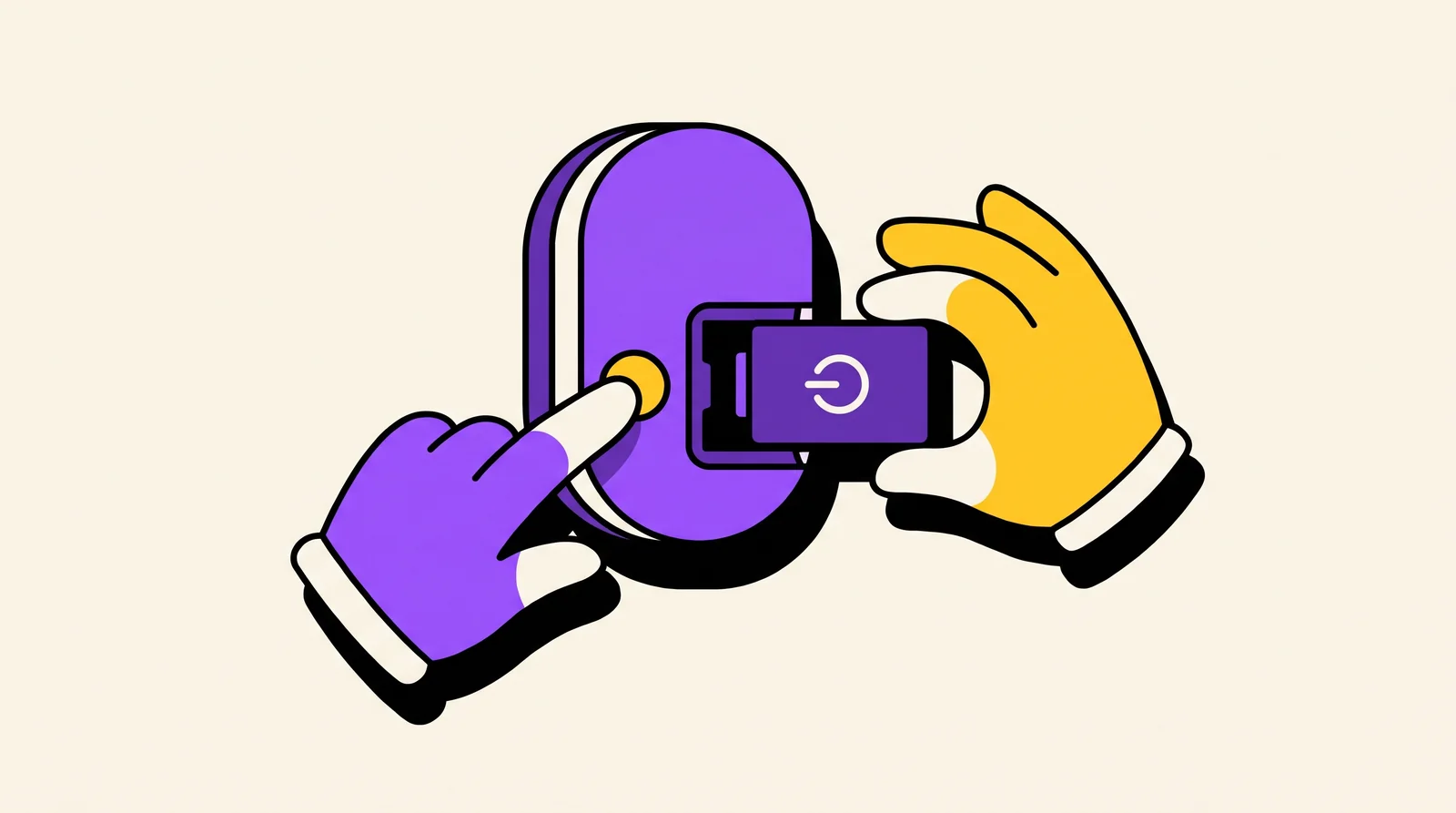
- While the door is open and unlocked, press and hold “Reset” for 5 seconds, until 3 long beeps sound.
- Type 0-0-0-0 on the keypad.
- Press the lock button (the enter arrow on the 275, the “Kwikset” button on the 264), hit “0,” then push that same button once more. The latch bolt moves in and out to recognize the door. For the Powerbolt 2 and 275, success is indicated by two beeps, while three beeps signal failure.
On the Powerbolt 2 and the 275 it will hand door automatically. The 264 follows the same procedure but requires manual handing afterward.
Reset the Premis in 20 seconds
Easy · 2 minThis restores the lock to factory default condition.
- Locate Button “A” on the back panel of the lock.
- Press and hold the button for 20 seconds.
- Let it go, then configure your codes again.
Since this reset won’t initiate the handing process, re-handing the door isn’t necessary.
Once reset, the Halo Select and Aura Reach appear offline in the app and become deactivated. Every access code and schedule gets wiped out. The lock is operating as intended. Configure it as a new lock.
Set the lock up again
Easy · 10 min- App locks (Halo, Halo Touch, Aura, Halo Select, Aura Reach): launch the Kwikset app and include the lock as a new one.
- Codes: set up your master code and user codes once more. The factory reset wiped the previous codes.
- Z-Wave or Zigbee hub: the hub still shows the old lock. Delete it from your hub’s app, then set the hub to its add-device mode to re-pair the lock. If the lock is tied to a Vivint panel, this Vivint door lock troubleshooting guide covers common pairing issues.
- Handing: complete it now if your model requires it.
- With the door open, verify the keypad and deadbolt from the inside.
If your lock was never a Kwikset, the Nest Yale lock troubleshooting guide covers Yale reset and battery problems.
If nothing worked
Contact Kwikset Electronics Technical Support at 1-800-327-5625. It’s open 24 hours daily, every day. Kwikset’s own page is also available for you to read, How do I perform a factory reset on my smart lock? (new tab). Have these details prepared: the lock model name, the specific reset attempt, which LED color appeared, how many beeps occurred, and if you removed the lock from the app beforehand.
Frequently Asked Questions
What is the difference between a network reset and a factory reset on a Kwikset lock?
A network reset clears the lock’s link to your network and the app, so you can add it again. A factory reset erases codes and settings, and on the Halo, Halo Touch and Aura it also erases Bluetooth pairings, Wi-Fi settings, event history and handing.
How do I reset my Kwikset lock if I forgot the code?
Get inside with your physical key. Run the factory reset for your model next, since this erases the old codes, then set up new ones. First, use “Forget Device” in your Bluetooth settings and delete the lock from the Kwikset app on a Halo, Halo Touch, or Aura.
Do I need to re-hand the door after resetting my Kwikset?
It varies by model. Manual handing is required for the SmartCode 910, 914, 916, 913, 905 and the 264. The Halo, Aura, Powerbolt 2 and 275 handle this automatically, while the Premis 20-second reset doesn’t trigger it.
Why is my Kwikset lock not working after a battery change?
Make sure the batteries or battery pack are properly seated and oriented correctly. If that does not help, remove them for a few seconds and reinsert them. When the lock continues to malfunction, proceed with the network reset or factory reset for your specific model.
What does the green or red blinking light mean during a Kwikset reset?
When performing a network reset, success is signaled by a prolonged beep paired with a green LED, whereas failure shows up as five quick beeps alongside a flashing red LED. Once the factory reset is complete, the Halo or Aura’s LED will blink green and red while the handing process is running.
Written with AI assistance. Facts and sources are checked automatically before publication. How we work