Start the setup over to get a fresh QR code, then move the code up on your screen so the whole square is visible, bottom edge included. Usually, the camera works fine. It simply cannot read the code in front of it.
Start with the free fixes and work your way up to the ones that need some effort. Stop once the camera reads the code and says “QR code scanned.” Should your camera misbehave in additional ways, the remaining issues are covered by the list of known Wyze camera problems.
Why the camera can’t read the code
While setting up, the Wyze app displays a QR code on the screen of your phone. Through its lens, the camera views that screen and reads the code. The code holds your Wi-Fi network name and password, letting the camera connect to your network.
There are four potential failure points: the code displayed on your screen (expired, cut off or distorted), the lens (dirty or covered), the Wi-Fi credentials embedded within the code (too long or too complex), or the network itself (the camera only connects to 2.4 GHz Wi-Fi, an older and slower band).
The printed QR code sticker on the camera or the box is not necessary. Even if the sticker is peeled off, scratched, or lost, setup will still work because the camera reads the code shown on your phone.
Restart setup to get a fresh code
Easy · 2 minThe QR code generated by the Wyze app stays valid for just 5 minutes. If you’ve been holding the phone up for a while, the code may already be dead.
- Exit the QR code screen and return to the beginning of the camera setup in the Wyze app.
- Start over so the app creates a new code.
- Scan it within a minute or two of seeing it.
Slide the code up so the bottom is not cut off
Easy · 1 minOn certain phones the QR code window gets cut off at the bottom. If an edge is missing, the code is unreadable.
- Place your finger on the screen and drag the page up until the entire code is visible, with white space on all four sides.
- Turn your screen brightness all the way up.
- Keep your phone steady with the screen facing the camera lens, and shift it slightly nearer or further away. Wait as long as a minute before you conclude it has failed.
If possible, put a plain background behind your hand. Cluttered surroundings and reflections from windows or lamps reduce code readability. Adjust the angle of your phone slightly if you notice a reflection on the screen.
Turn off dark mode and forced dark settings
Easy · 2 minThe phone’s dark mode can alter how the code appears on screen. A Wyze user discovered that the scan worked when forced dark mode was disabled, since it had rendered the code unreadable.
- Access the display settings on your phone and disable dark mode. Certain Android phones include a setting that enforces dark mode on apps lacking native support for it. Switch that off as well.
- Head back to the Wyze app and begin setup once more so the code gets redrawn.
- Scan the camera.
- After the camera is set up, switch dark mode back on.
Check the lens and the app
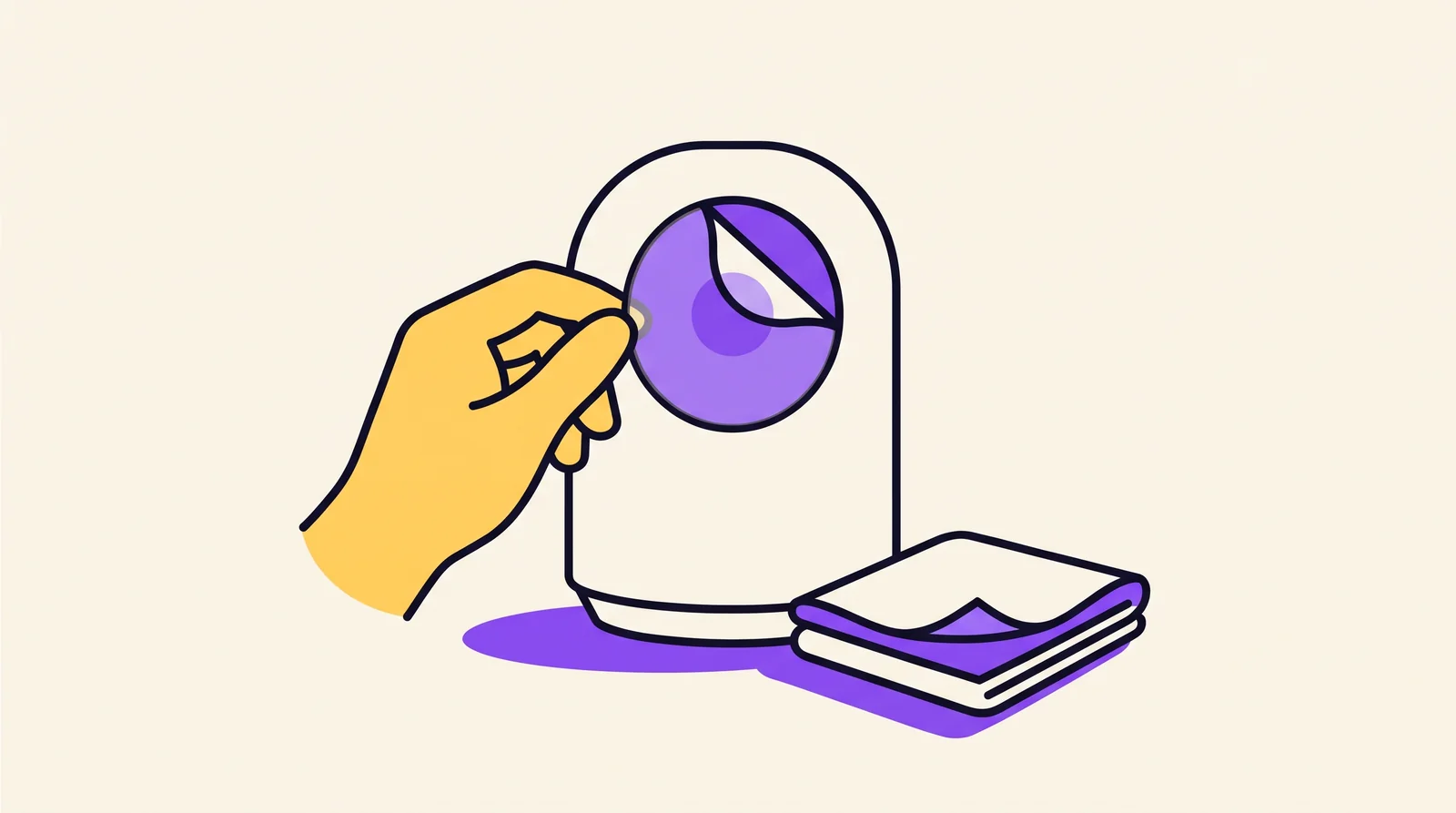
Easy · 3 min- Remove any protective film covering the camera lens. Fresh cameras usually arrive with one.
- Use a clean, dry microfiber cloth to wipe the lens.
- Make sure you update the Wyze app to its latest version on the App Store or Google Play.
- Switch to another phone or tablet if you have one available.
Should the live code continue to fail, immediately capture a screenshot and view or print it enlarged. Complete this step before the 5-minute code expires. A printed code works only when it remains flat and complete.
Simplify the Wi-Fi name and password
Intermediate · 10 minThe code stores your Wi-Fi Wi-Fi name and password. As their length and complexity increase, the code becomes denser, and reading it grows more difficult for a small camera lens.
Updating your router’s Wi-Fi network name or password kicks all devices offline until you reconnect them. Set aside a moment when you can reconnect your phones, TVs, and other smart devices, and jot down your old details beforehand.
- Access your router’s settings or its app.
- Assign the 2.4 GHz Wi-Fi network a brief name using only letters and numbers.
- Choose a shorter password made up of only letters and numbers, with no spaces or symbols.
- Connect your phone back to that network, then restart the camera setup.
Should you prefer keeping your primary network untouched, jump ahead to the step 7 hotspot test. This verifies the same thing while leaving your router untouched.
Steps 6 and 8 erase the camera’s Wi-Fi details or reboot it. When the camera is already installed and monitoring your home, it won’t record or send alerts until it’s back online. Do these steps when you can be there to finish the setup.
Reset the camera
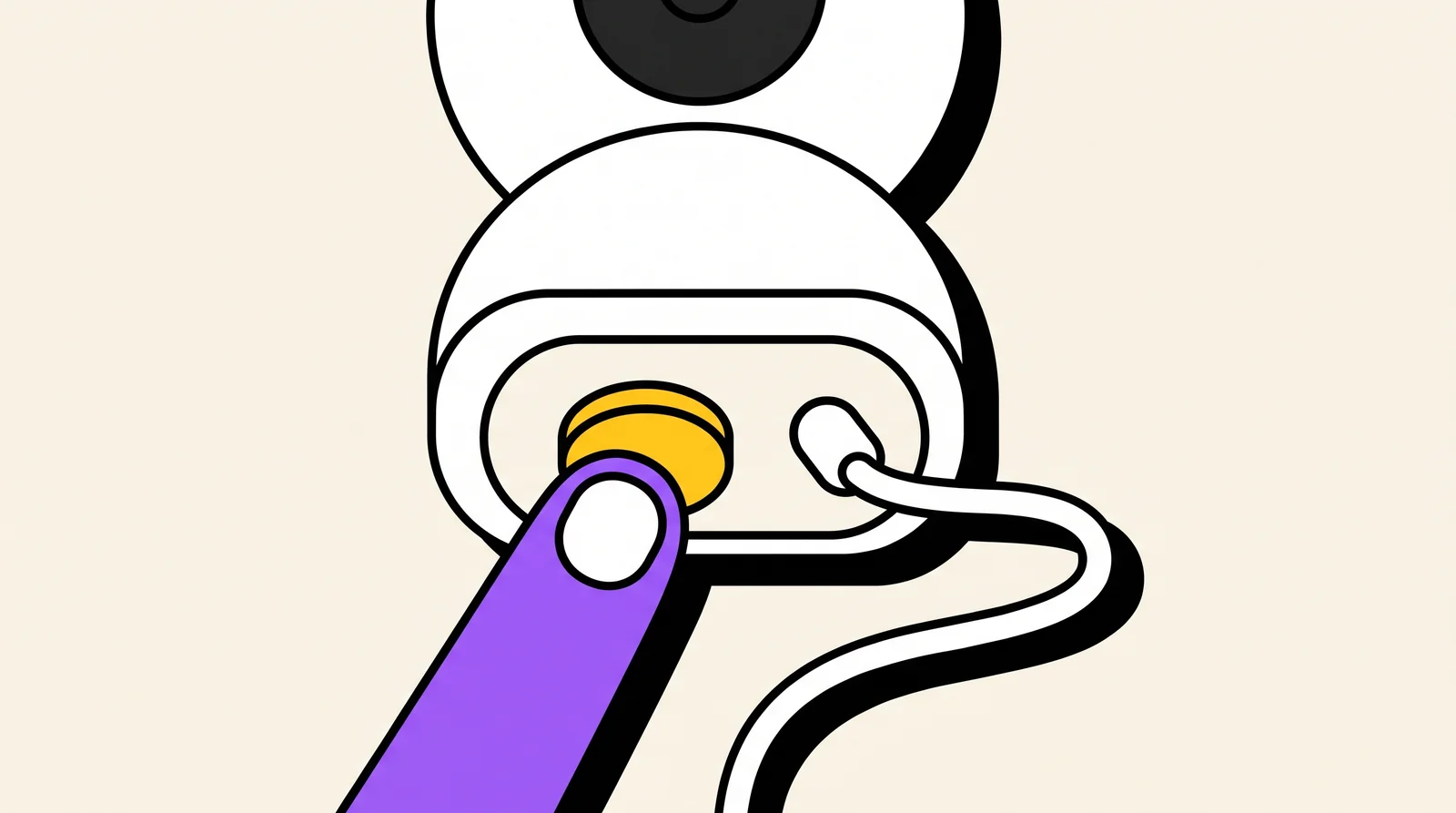
Intermediate · 5 minA reset erases the Wi-Fi details saved in the camera, allowing setup to start from the beginning. The model determines the reset method.
- Wyze Cam v3 and Wyze Cam Pan v2: with the camera plugged in, press and hold the setup button for 10 seconds, then release and wait at least 30 seconds.
- Wyze Cam Pan v3, Floodlight and doorbell models: the procedures might vary. Don’t guess, follow the exact model page for yours. Wyze provides a page on what to do when the Pan v3 does not scan the QR code (new tab) for the Pan v3. If you own a Floodlight, first determine which version you have. Wyze Cam Floodlight vs. Pro lists the differences.
After the reset, wait until the camera is ready for setup, then begin from step 1 using a new code.
Test with your phone’s hotspot
Intermediate · 10 minThis check reveals if your router is the issue. Your phone creates a Wi-Fi network from its mobile data, called a hotspot.
- If possible, run the hotspot on a second phone. When you have just a single phone, a separate device is necessary to run the Wyze app.
- Enable the personal hotspot on the hotspot phone. Choose a brief name and a basic password using letters and numbers only.
- Ensure the hotspot operates on the 2.4 GHz band. On an iPhone, enable “Maximize Compatibility” within the hotspot settings. If your Android phone gives you the option, select 2.4 GHz in the hotspot settings.
- Connect your phone with the Wyze app to the hotspot, then begin setting up the camera.
When the camera successfully scans and connects, it works. Your router’s configuration is the culprit: typically the 2.4 GHz band is disabled, combined with 5 GHz under a single name, or secured with a lengthy password. After setting up the camera, you can later return it to your home network.
Your mobile data plan is used by hotspots. Setup barely uses any data.
Flash the firmware by hand from a microSD card
Advanced · 20 minThe software operating inside the camera is firmware. A camera that failed to scan was repaired in one reported instance by manually installing it from a microSD card. Only try this step after the others, and only if the camera is powered with a responsive LED.
- Grab the firmware file for your specific camera model from Wyze’s official firmware page. Installing an incompatible file for an incorrect model may render the camera inoperable.
- Insert a microSD card with a capacity of 32GB or less, formatted as FAT32. This is the format a Wyze user recommended for this fix.
- Follow the instructions for your model and copy the file to the card using the exact file name Wyze gives.
- Unplug the camera, put in the card, then reconnect it. Follow the model’s guidance on the wait time and the indicator light to observe.
- Keep the camera plugged in while it updates.
- Once the update finishes, take out the card and begin setup from step 1.
Use the instructions that come with the file for your model. If these instructions conflict with this summary, follow them.
After the scan, the camera says “QR code scanned”, the app advances to the next setup screen, and a live view appears in the Wyze app. Should your video stutter afterward, consult Wyze live stream problems.
If nothing worked
When the hotspot test and a reset do not get the camera to scan, the camera itself may be faulty, especially if it is new. Reach out to Wyze Support via the My camera does not scan the QR code (new tab) page. If the camera is still under warranty, ask about a replacement.
Get this ready:
- Which camera model you have (Cam v3, Pan v2, Pan v3, Floodlight, doorbell).
- The camera’s light color and behavior.
- Your phone model and the Wyze app version you are using.
- Which steps you already attempted, including the hotspot test.
- Your proof of purchase or order number.
Frequently Asked Questions
Can I set up a Wyze camera without the QR code sticker?
Yes. The camera does not scan the sticker. When setting up, the Wyze app displays a QR code on your phone, and the camera scans that one.
Does dark mode stop a Wyze camera from reading the QR code?
It can. A user discovered that the forced dark mode feature on their phone rendered the code unreadable. Disable dark mode, scan the camera, and switch it back on.
Does the Wyze camera need 2.4 GHz Wi-Fi?
Yes. During setup, use a phone connected to a 2.4 GHz network. When your router combines 2.4 GHz and 5 GHz under a single name, having a distinct 2.4 GHz name or using a phone hotspot configured to 2.4 GHz simplifies this.
How long is the Wyze QR code valid?
The Wyze app generates a code that remains valid for 5 minutes. After that, begin setup anew to get a fresh one.
When should I replace the camera?
Get a new one if a fresh code, a clear lens, a 2.4 GHz hotspot and a reset all fail. By then, the camera is probably defective. If the camera is still covered by warranty, reach out to Wyze Support first. Considering alternatives to this brand, see Wyze vs. Kasa camera.
Written with AI assistance. Facts and sources are checked automatically before publication. How we work